Install Guardian Android SDK
Guardian is available both in Maven Central and JCenter.- To use Guardian, add these lines to your
build.gradledependencies file:implementation 'com.auth0.android:guardian:0.4.0'You can check for the latest version on the repository Releases tab, in Maven, or in JCenter. - After adding your Gradle dependency, make sure to sync your project with Gradle file.
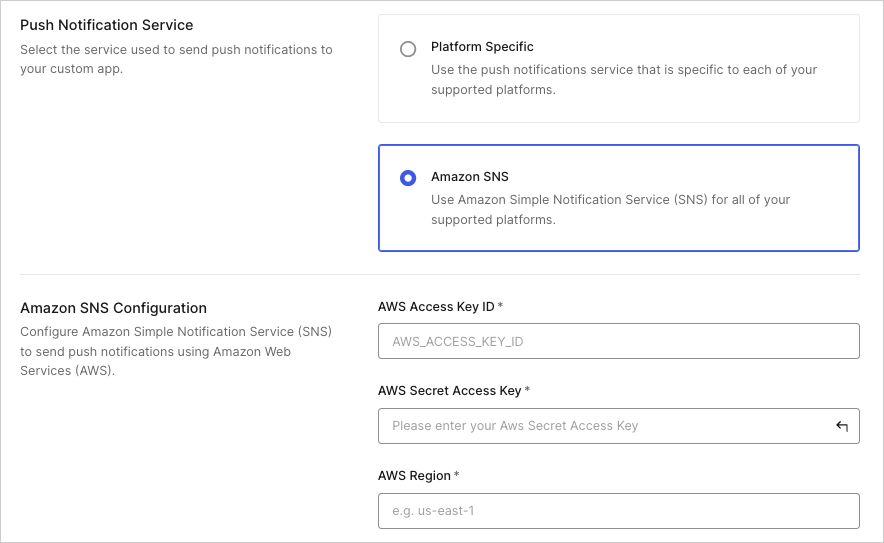
Enable Guardian push notifications
- Go to Dashboard > Security > Multifactor Auth > Push via Auth0 Guardian.
- Toggle the switch at the top to enable it.
Use SDK
Guardian is the core of the SDK. You’ll need to create an instance of this class for your specific tenant URL.Enroll
The link between the second factor (an instance of your app on a device) and an Auth0 account is referred to as an enrollment. You can create an enrollment using theGuardian.enroll function, but first, you’ll have to create a new pair of RSA keys for it. The private key will be used to sign the requests to allow or reject a login. The public key will be sent during the enrollment process so the server can later verify the request’s signature.
Unenroll
To disable MFA, you can delete the enrollment:Allow login requests
Once you have the enrollment in place, you’ll receive a FCM push notification every time the user needs multi-factor authentication. Guardian provides a method to parse theMap<String, String> data inside the RemoteMessage received from FCM and return a Notification instance ready to be used.
allow method to approve the authentication request. You’ll also need the enrollment that you obtained previously. If there are multiple enrollments, be sure to use the one that has the same id as the notification (the enrollmentId property).
Reject login requests
To deny an authentication request, usereject instead. You can also add an optional reason for the rejection, which will be available in the guardian logs.
Set up mobile-only OTP enrollment
You can enable one-time passwords (OTP) as an MFA factor using the or . This option does not require a QR code and allows users to enroll manually. To invite a user to enroll, navigate to the Auth0 Dashboard > User Management > Users and select a user. Then, access their Details tab and use the Multi-Factor Authentication section to send an enrollment invitation.Connect a resource
You can connect a resource using the Auth0 Dashboard or the Guardian SDK.Use Auth0 Dashboard
-
Access the Auth0 login prompt and copy the provided code or a similar base32 encoded key obtained from another source.
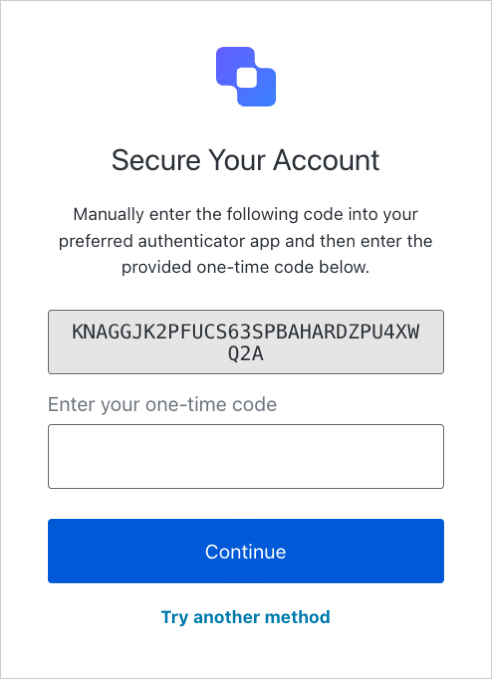
- After obtaining your code, add it to the Guardian SDK:
public String copiedCode = "{copiedCode}";
Kotlin
val copiedCode: String = "{copiedCode}"
Use Guardian SDK
First, add theLoginCodeGenerator class to your project. Then, use getCode (String copiedCode) to generate a one-time code in your app.
Java
Enter one-time code
Enter the generated one-time password fromgetCode() into the Auth0 login prompt.
Log in with your app
After the factor has been enrolled, your user can log in using your app. First, choose the Guardian app as your authentication method.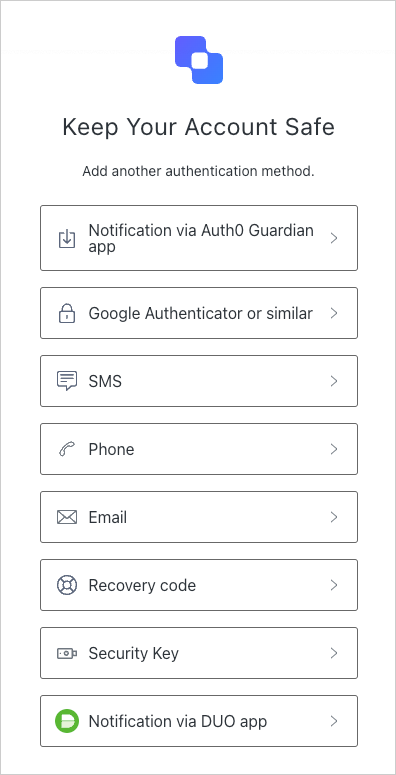
getCode(copedCode: String) using the code you copied from the Auth0 login prompt.
Then, enter the one-time code into the login prompt to verify your identity.